How to Add Lyrics to a Video (Synced, Not Typed by Hand)
Add synced lyrics to a video you already have: upload the clip, paste the lyrics, let Youka time each word to the vocal, keep your footage as the background, fix any misses, and export an MP4.
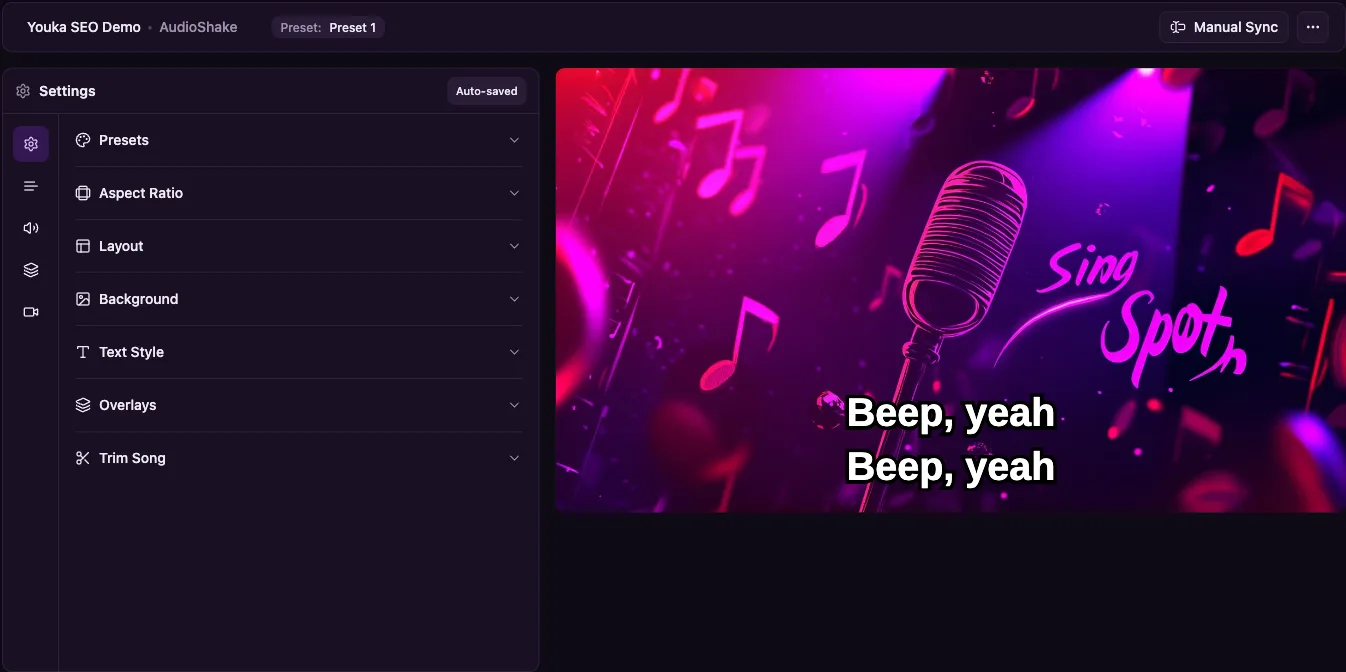
Adding lyrics to a video by hand means typing every line as a text layer and dragging each one to the right moment. For a full song that means dozens of lines timed by hand. A lyric tool does the timing for you: it listens to the vocal, places each word where it is sung, and lets you fix only the lines that land wrong.
This guide shows that workflow in Youka with a video you already have, such as a performance clip, a music video draft, a rehearsal recording, or a phone video of someone singing.
Quick Answer
To add lyrics to a video, open the Lyric Video Maker in Youka Online, upload your video file, paste lyrics that match the recording, and let Youka time the words to the vocal. In the studio, keep your own footage as the background, fix any line that appears early or late, choose a readable text style, and export the result as an MP4.
What You Need Before You Start
- The video file. MP4, MOV, MKV, AVI, or WebM. The song must be audible in the clip, because the timing comes from the vocal.
- Lyrics for that exact recording. A live take, a cover, or a radio edit often changes words, repeats, or sections. Lyrics from a different version are the most common cause of drift.
- A clear vocal. Crowd noise, heavy effects, or a quiet singer under loud music make automatic timing harder and leave more lines to fix by hand.
Clean the lyrics once before you upload. Remove titles, credits, and timestamps, and write every chorus out in full instead of "repeat chorus". Each sung line needs its own line of text so it can get its own place on the timeline.
Step 1: Upload the Video
Open Youka Online and start a lyric video project. Drop your video file into the upload area or click to browse.
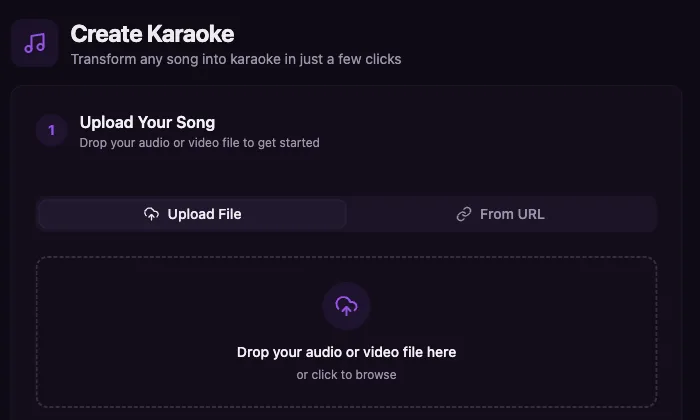
If the video lives on a public site rather than on your computer, use the From URL tab together with the Youka Extension. The video URL guide covers that path.
Step 2: Add the Lyrics
Paste your cleaned lyrics, or let Youka look them up when you trust the lookup to find the right version. Pasting is the safer choice for live recordings, covers, and anything that is not the standard studio release.
Read along once while the song plays before you continue. If the clip starts mid-song or cuts off early, delete the lines that are not in the video. Lyrics for sections that are not in the clip will pull the timing off.
Step 3: Let Youka Time the Words
Start processing. Youka aligns each word of your lyrics to the vocal in the video's audio and opens the result as a playable draft in the studio. Most songs take a few minutes.
For a lyric video, keep the original vocal in the mix. Remove vocals only if you want a karaoke version where viewers sing the lead part themselves. That workflow is in How to Make a Karaoke Video.
Step 4: Keep Your Footage as the Background
In the studio, open Background and choose your project video. Your original clip then plays behind the synced lyrics, so the result is your footage with the words on top rather than a new video built on a stock background.
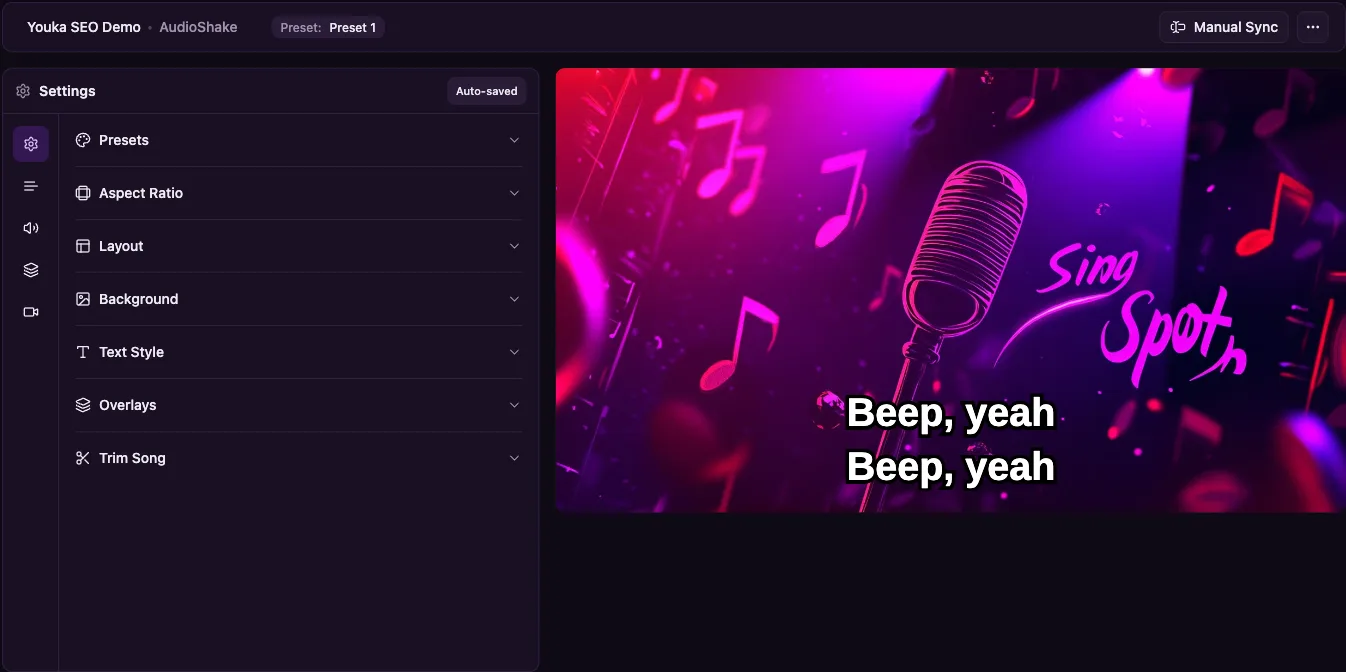
Then set the frame for where the video will be watched:
| Destination | Aspect ratio | Text tip |
|---|---|---|
| YouTube, TV, projector | 16:9 | One or two lines near the lower third |
| TikTok, Instagram Reels, Shorts | 9:16 | Larger text, kept clear of the app buttons |
| Instagram feed, square posts | 1:1 | Short lines, centered |
| Older screens, some event setups | 4:3 | Check that nothing is cropped at the edges |
Step 5: Make the Words Readable on Moving Footage
Text over real footage is harder to read than text over a solid color, because the background changes from frame to frame. In Text Style:
- raise the font size until a line is readable at phone size
- add an outline or shadow so white text survives bright frames
- use a highlight color that differs clearly from the unsung words
- keep lines short, and split any line that wraps to three rows
If the footage is very busy, an image or solid-color background is often easier to read than the clip itself. Readability beats keeping every frame.
Step 6: Fix the Lines That Land Wrong
Play the draft from the start and watch it the way a viewer will. Most lines will already sit on the vocal. For the few that do not, open Manual Sync.
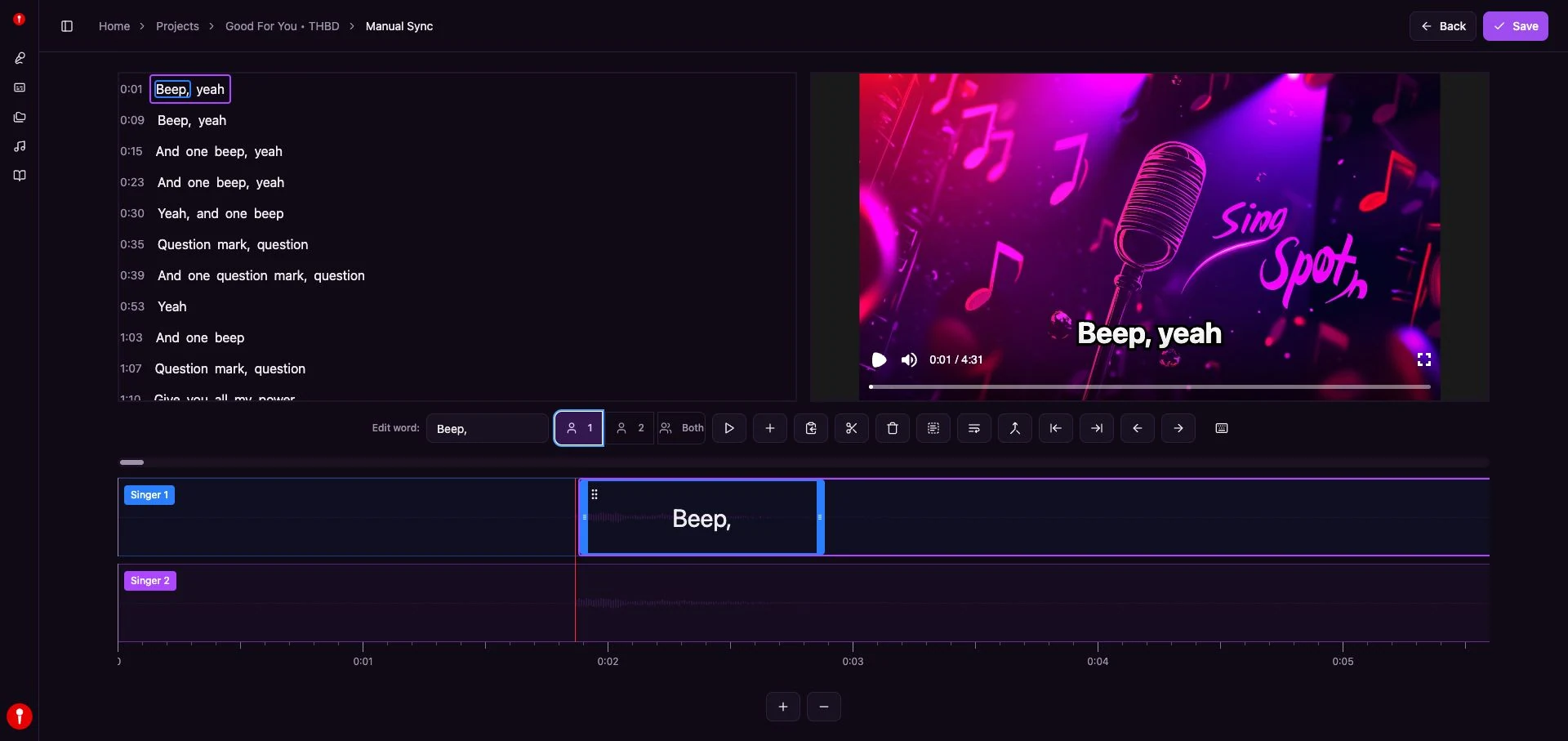
The Manual Sync view shows the lyric list, the video preview, and a word timeline in one screen. Click a word, drag it or its edges on the timeline, and replay from a second or two before the edit. Fix whole lines first and single words only where a viewer would notice.
| What you see | Usual cause | Fix |
|---|---|---|
| Every line after a point is late | A missing verse or chorus in the text | Add the missing lines to the lyrics |
| One line appears early or late | A fast phrase or a held note | Drag that line on the timeline |
| Words flash by too fast to read | Too many words in one line | Split the line into two |
| Lyrics start before anyone sings | A spoken intro or instrumental opening | Move the first line to the real vocal entry |
The lyric synchronization guide goes deeper on timing cleanup.
Step 7: Export the MP4
When the timing and text look right through the whole clip, export. Youka renders an MP4 at up to 4K that plays on YouTube, phones, TVs, and social apps. Before you upload or play it at an event, watch the exported file once end to end, and use the export settings checklist if it is going to a specific screen or platform.
Typing Lyrics Yourself vs Using Automatic Sync
| Method | Timing work | Best for |
|---|---|---|
| Text layers in a video editor | Every line placed by hand | A few words of on-screen text, not a full song |
| Subtitle file (SRT) in a video editor | Every line timed by hand | Spoken video, where words per line are few |
| Youka automatic lyric sync | Review and fix the misses only | Full songs where words follow the sung vocal |
FAQ
Can I add lyrics to a video for free?
New Youka accounts get 15 free credits, which is enough to add lyrics to a real video, check the timing, and export it. After that you buy credits for more videos. See pricing for current plans.
Will Youka keep my original video?
Yes. Choose the project video as the background in the studio and the lyrics play over your own footage.
Do I have to remove the vocals?
No. A lyric video normally keeps the singer. Vocal removal is only for karaoke versions where the viewer sings.
What if Youka gets some words wrong?
Edit the word in the lyric list or in Manual Sync. Wrong words usually mean the pasted lyrics differ from what is sung, so check the text against the recording first.
Can I make a lyric video without any video?
Yes. Start from an MP3 or other audio file and pick an image, solid color, or video background instead. That workflow is in How to Make a Lyric Video.
Ready to put synced lyrics on your clip? Open the Lyric Video Maker and start with the free credits.