How to Create Karaoke From a Video URL Online
Learn how to create karaoke from a public video URL online with Youka, from source choice and lyrics to AI processing, timing fixes, export, and safe usage.
Creating karaoke from a video URL is useful when the song is easiest to start from online instead of from a file on your computer. Maybe you found an official audio upload, a clean music video, a rehearsal reference, or a rights-safe demo track. The goal is simple: turn that source into a karaoke video with readable synced lyrics, a clean backing track, and an MP4 you can play, share, or keep in your library.
The fastest path in Youka is to start in the browser. Use Youka Online for the project, add the Youka Extension when the web app needs video URL handling, then refine the karaoke in the studio before export.
Quick Answer
To create karaoke from a video URL online, start a project in Youka Online, use the Youka Extension when the source is a public video URL, add or find accurate lyrics, let Youka prepare the audio and synced lyric timing, then review the result in the studio before exporting or saving it to your karaoke library.
If you want the focused workflow page, use YouTube to Karaoke. If you already have an audio file, use MP3 to Karaoke. For the full finished-video workflow, see Karaoke Video Maker.
What You Need Before You Start
A good result starts with the source. Choose a video URL that has clean audio, stable timing, and a version that matches the lyrics you plan to use.
Good source choices:
- official audio uploads
- clean music videos
- lyric videos where the audio matches the lyrics
- public demo tracks with usage rights
- your own uploaded or licensed source material
Harder source choices:
- live recordings with crowd noise
- clips with long spoken sections
- remixes or covers where common lyrics do not match
- very low-quality uploads
- videos with dialogue or effects over the vocal
You also need to think about rights. Youka can help you create the karaoke file, but it does not give you permission to use someone else's music, video, or lyrics. For public uploads, client work, events, or commercial use, use material you own, licensed material, or a source that clearly allows your intended use.
For demo work, Youka uses the approved no-copyright reference track Good For You by THBD from Audio Library: source video.
Step 1: Start in Youka Online
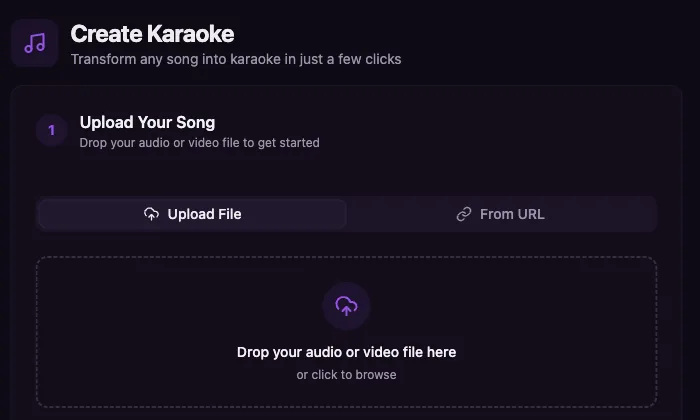
Open Youka Online and create a new karaoke project. You do not need to download the desktop app just to test the workflow. Start in the browser, upload or choose your source path, and let the app guide you.
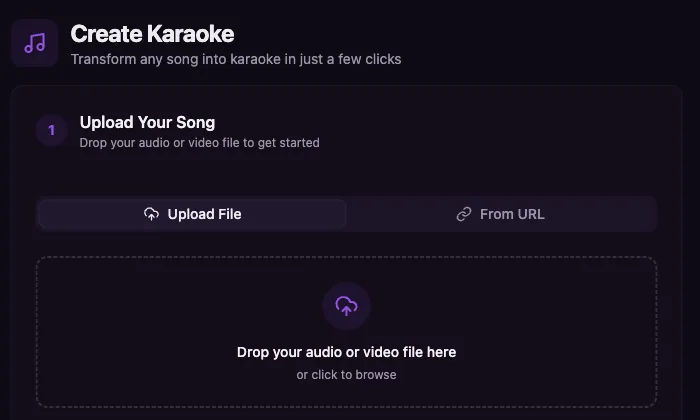
This matters because most first-time karaoke projects do not need a heavy setup. You want to learn whether the source works, whether the lyrics match, and whether the first synced draft is close enough to finish.
Step 2: Use the Extension When the Source Is a URL
A normal browser cannot handle every video URL workflow by itself. When you start from a public video URL, Youka Online can use the Youka Extension for URL handling and supported local capabilities.
You do not need to install it before you know you need it. Start in the web app. If your workflow requires the extension, follow the prompt, connect it, and continue from the same project.
After the extension is ready, paste the public video URL and let Youka prepare the source for processing. If the link is private, region-restricted, premium-only, or unsupported, choose another source or upload a file you already have permission to use.
Step 3: Add Lyrics That Match the Exact Version
Lyric matching is where many URL-based karaoke projects fail. The most popular lyrics online may not match the exact video you pasted. A radio edit, live version, cover, remix, or shortened upload can have different lines, repeated sections, or timing.
Before processing, clean the lyrics:
- remove titles, credits, ads, and timestamps
- write repeated choruses in full instead of "repeat chorus"
- split long lines into short singable phrases
- keep ad-libs only when singers need them
- check the bridge and outro against the actual video
- remove extra punctuation that makes timing harder to read
Good lyric prep makes the AI sync better and makes manual cleanup faster. If the project feels hard to sing from later, the first thing to check is whether the lyrics match the exact source.
Step 4: Let AI Create the First Karaoke Draft
Once the source and lyrics are ready, let Youka process the song. The first draft usually handles the heavy work:
- preparing the source media
- separating the lead vocal from the backing track
- aligning lyrics to the song timing
- creating a playable karaoke preview
- opening the project in the studio for review
Some accounts or workflows may offer different model paths for audio separation and lyric alignment. For difficult songs, a stronger model can matter more than small design changes. Use the best available processing path for noisy audio, dense vocals, or tracks where clean separation matters.
The first draft should not be treated as the final file. It is the starting point. The final quality comes from checking the result like a singer, not like a file converter.
Step 5: Review Timing and Style in the Studio
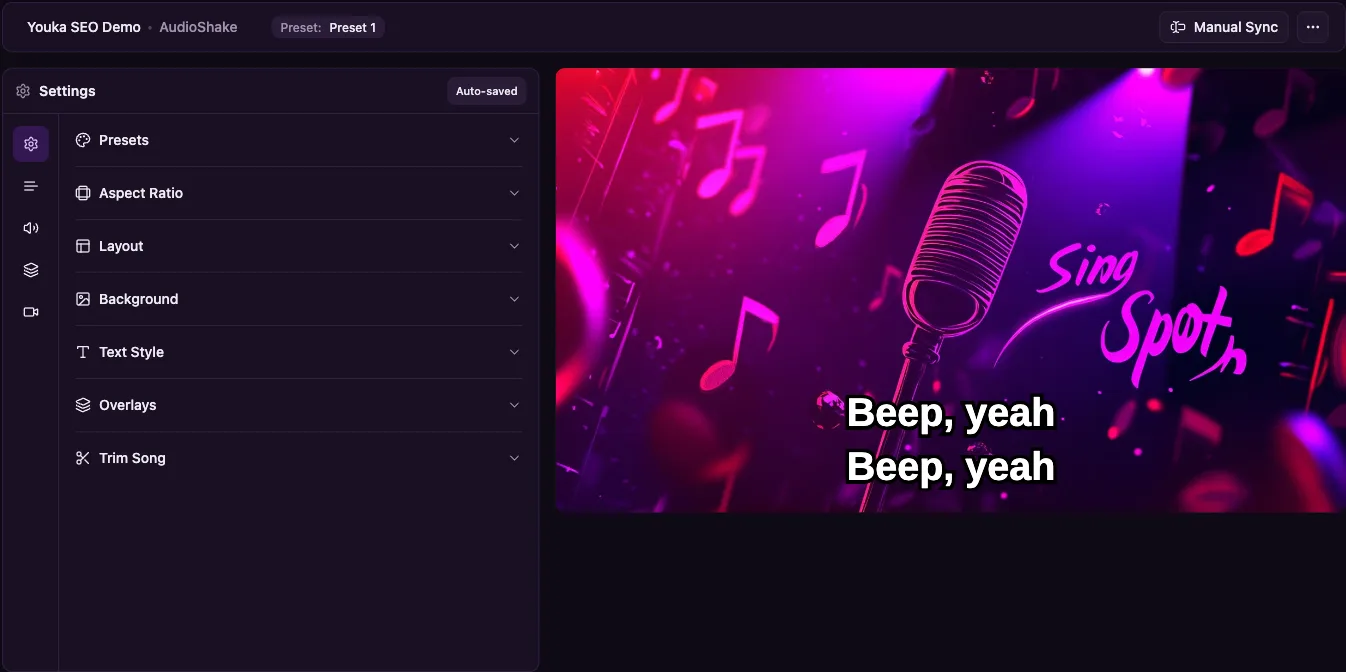
Open the project in the studio and play the song from the beginning. Watch for three things: words that appear late, lines that are too long to read, and backgrounds that make the text hard to see.
Fix timing in passes:
- Correct large line-level timing problems first.
- Split lines that are too long for a TV or phone screen.
- Move individual words only where singers would notice.
- Preview from a few seconds before each change.
- Do one final read-along pass before export.
Then check the design. Karaoke videos are not normal lyric videos. The singer needs to see the next words before they need to sing them. Use large text, strong contrast, simple colors, and a background that does not fight the lyrics.
Step 6: Export or Save to Your Library
When the preview feels singable, export the karaoke video or save it to your Youka library. For most creators, the best file is a clean MP4 with readable text and a stable layout. Use the karaoke video export settings checklist before creating a batch, especially if you plan to play the file on a TV, projector, phone, or event setup.
If the video is going to a living-room screen, classroom projector, or party setup, check the focused TV-ready karaoke video guide before the final export.
If you make karaoke often, the library matters. Instead of creating one file and losing track of it, keep finished projects organized so you can stream them from another device, prepare a party list, or use a phone as a remote when your setup supports it.
Common Problems and Fixes
The video URL does not import
Make sure the video is public and accessible in your browser. Private videos, paid content, region restrictions, age gates, and unsupported sites can block the workflow. If the URL is unreliable, use a local file or another clean source.
The lyrics are out of sync
Check whether the lyrics match the exact recording. Many songs have album versions, live versions, radio edits, and covers. Fix the lyrics first, then adjust timing.
The vocals are still audible
Try a cleaner source. Vocal separation is harder when the song has crowd noise, heavy reverb, overlapping background vocals, distortion, or low bitrate audio.
The words are hard to read
Increase the font size, add outline or shadow, reduce background movement, and keep lines shorter. A karaoke video should be readable from a couch, not only from a laptop screen.
The final video feels late when singing
Move lyric lines slightly earlier. Karaoke timing should help singers prepare. If the words appear exactly when the vocal starts, the video can still feel late in real use.
URL Workflow vs File Upload
| Starting point | Best fit | Use this when |
|---|---|---|
| Public video URL | YouTube to Karaoke with Youka Online and the extension | The best source is online and you do not already have a clean local file |
| Audio file | MP3 to Karaoke | You already have the song as MP3, WAV, FLAC, or another audio file |
| Full karaoke video | Karaoke Video Maker | You care about the finished MP4, visuals, text style, and playback |
| Browser-first workflow | Online Karaoke Maker | You want to start quickly without a desktop app |
Frequently Asked Questions
Can I create karaoke from a video URL online?
Yes. Start in Youka Online and use the Youka Extension when the workflow needs public video URL handling.
Do I need the desktop app?
Not for the normal web-first workflow. Start online. Use the extension when the web app asks for URL handling or supported local capabilities. Use desktop only when you specifically want a native desktop workflow.
Can Youka find lyrics automatically?
Youka can help find lyrics when available, but clean pasted lyrics are still best when you need accurate karaoke timing. Always check that the lyrics match the exact source video.
Can I keep the original video background?
When the source workflow supports video, you can use video material in the project, but you are responsible for rights to the footage and music. For public demos or client work, use approved or licensed media.
What should I do after the first draft?
Preview the whole song, fix mismatched lyrics, adjust timing, improve readability, and export only after the video feels easy to sing from.
Ready to try it? Open Youka Online, start a project, and use the video URL to karaoke workflow when your source is a public link.