Karaoke Video Export Settings Checklist
Use this karaoke video export checklist to choose 1080p MP4 settings, readable lyric styling, playback tests, and library naming before YouTube, TV, projector, or event use.
The best karaoke export setting is the one that stays readable and plays reliably where people will actually sing. A YouTube upload, living-room TV, classroom projector, event laptop, and personal practice library all need slightly different checks before you call the file finished.
Use this checklist after you create the karaoke draft in Youka Online or the Karaoke Video Maker. It keeps the export decision practical: pick the destination, make the lyrics easy to read, test the actual playback path, and keep a clean file or library copy for later.
Quick Answer
For most karaoke videos, export a 1080p MP4 with large high-contrast synced lyrics. Keep the background simple, leave safe spacing around the lyric area, preview the full song, then test the file on the TV, projector, laptop, or upload workflow you plan to use.
If the video is for a party, class, rehearsal, or event, do not rely only on the editor preview. Stand across the room and check whether the words are readable before the final export.
Example Export Target
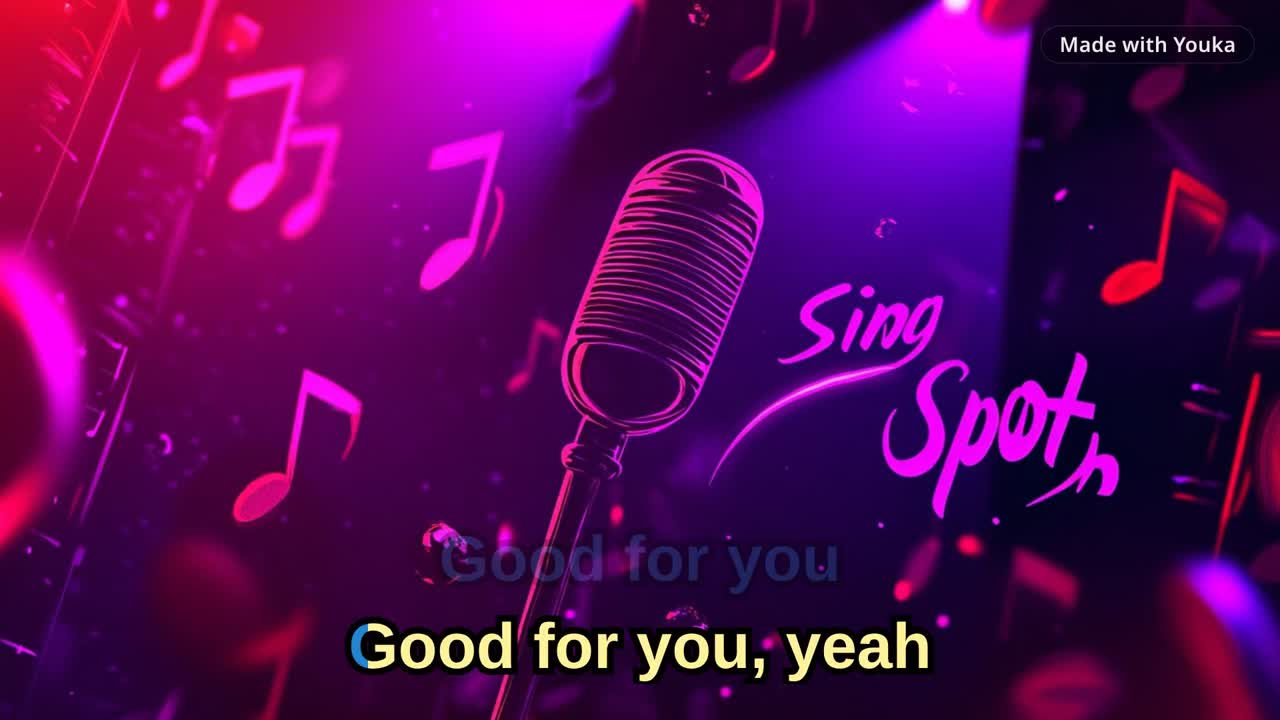
This short Youka demo uses an approved royalty-free sample track. It shows the practical target for most exports: synced words, readable styling, and a finished MP4 file.
Demo music: Good For You by THBD, from Audio Library. Source: YouTube.
Export Settings by Destination
Start with where the video will be used. Then choose the export and design checks around that destination.
| Destination | Recommended default | Check before export |
|---|---|---|
| YouTube | 1080p MP4, landscape, clean intro and outro | Lyrics do not crowd the edges, source rights are clear, and the full file uploads cleanly |
| TV playback | 1080p MP4 with large high-contrast lyrics | Words are readable from across the room on the actual TV or player |
| Projector, class, or event | 1080p MP4 with extra-readable text and a simple background | Projector brightness, speaker routing, and a backup playback path are tested |
| Shorts, Reels, or TikTok | Short clip or vertical crop when your workflow supports it | Lyrics are not too dense for a small screen |
| Personal karaoke library | Saved Youka project plus a consistently named MP4 when needed | Song names, versions, and event sets are easy to find later |
| Audio-only practice | MP3 or instrumental export when video is not needed | Singers do not need on-screen lyrics for that use case |
1080p MP4 is a practical default, not a promise that every device will play every file. If the video matters for an event, test the exact file on the exact device.
Lyric Readability Checklist
Good export settings cannot rescue unreadable lyrics. Before exporting, review the video like a singer, not only like an editor.
- Lyrics use a large, clear font
- Text has strong contrast against the background
- Outline or shadow keeps words readable over changing visuals
- Each screen shows one or two short lyric lines
- Long lines are split into singable phrases
- Lyrics stay away from the very bottom edge
- Active and inactive lyric colors are easy to distinguish
- Duet colors are useful, not decorative clutter
- Busy backgrounds are avoided during lyric-heavy sections
If the video will play on a TV or projector, check the focused TV-ready karaoke video guide before the final export.
Timing Checklist
Karaoke timing should help singers prepare. If the words appear exactly when the vocal starts, the file can still feel late in a real sing-along.
- The first lyric line appears with enough lead time
- Repeated choruses stay consistent
- Long instrumental breaks do not leave stale lyrics on screen
- Fast phrases are split into readable sections
- Any word-level fixes were checked in context
- The final chorus still feels singable after edits
- A full-song preview was done before export
For a deeper timing workflow, use the lyric synchronization guide after Youka creates the first synced draft.
File and Device Preflight
Run this before uploading, sharing, or playing the karaoke video in front of people.
- The export opens on your computer
- Audio is present in the exported file
- Lyrics are readable at normal viewing distance
- The MP4 plays on the target TV, projector, laptop, or media player
- Speaker or karaoke-system audio is routed correctly
- Microphones were tested after music playback worked
- A backup playback path is ready for events or classes
- Source rights are clear for the intended use
If you are creating from a public video URL, start in Youka Online and use the Youka Extension when the workflow requires URL handling. The full process is covered in the video URL to karaoke guide.
Naming and Library Checklist
The export is not finished if you cannot find it later. This matters for teachers, hosts, DJs, coaches, and anyone building a repeatable karaoke set.
Use names that make the version obvious:
Artist - Song - Karaoke.mp4Artist - Song - TV Version.mp4Artist - Song - Class Practice.mp4Artist - Song - Instrumental.mp3
Before you make a batch, decide whether the project belongs as a saved Youka library item, an exported MP4, an audio-only practice file, or all three.
Common Export Problems
The lyrics are too small on TV
Increase font size, split long lines, and preview from the farthest seat. Do not optimize only for a laptop preview.
The projector makes the words hard to read
Use stronger contrast, a darker background, thicker outline, or simpler visuals. Projectors often need more conservative styling than desktop screens.
The MP4 does not play on the device
Try the same file on a laptop first. If the file works there, use a known-good player or laptop for the event instead of changing the whole karaoke design at the last minute.
The final video feels late when singing
Move the affected lyric lines slightly earlier. Singability matters more than frame-perfect alignment.
The file is too large to share
Keep the full 1080p MP4 for playback or upload, but create a shorter clip when you only need a preview. Use audio-only export when singers do not need on-screen lyrics.
The source is not cleared for public use
Do not upload or use the karaoke video publicly until you have rights to the song, lyrics, source video, fonts, backgrounds, and any branding in the file.
Frequently Asked Questions
What is the best format for a karaoke video?
For most finished karaoke videos, 1080p MP4 is the safest default. It balances quality, readability, and portability for YouTube, TVs, laptops, projectors, and event playback.
Is 1080p enough for karaoke?
Usually, yes. Karaoke export quality is more about readable lyric styling, timing, and playback testing than chasing the highest possible resolution.
Should I export or save to my Youka library?
Export an MP4 when you need a portable file for upload, TV playback, projector playback, or event use. Save the project to your Youka library when you want to organize songs, reuse them, stream them from another device, or keep a set ready for later.
What settings should I use for a TV or projector?
Use 1080p MP4, large high-contrast lyrics, one or two lyric lines, simple backgrounds, and safe spacing around the text. Test the file on the actual TV or projector before the session.
Can I make a karaoke video online?
Yes. Start in Youka Online, create the karaoke draft, review lyrics and timing in the studio, then export or save the finished version. For the full workflow, read How to Make a Karaoke Video.
Create a Karaoke Video You Can Actually Use
Start with Youka Online, make a readable synced karaoke draft, preview it like a singer, and export a file that matches the playback destination.
For the focused finished-video workflow, use the Karaoke Video Maker. If you want the complete creation process from source to export, read How to Make a Karaoke Video.