How to Make a Lyric Video From a Song (Step by Step)
Make a lyric video from an MP3 or any song file: add matching lyrics, let Youka sync every word, pick a background and text style for YouTube or TikTok, fix timing misses, and export an MP4 up to 4K.
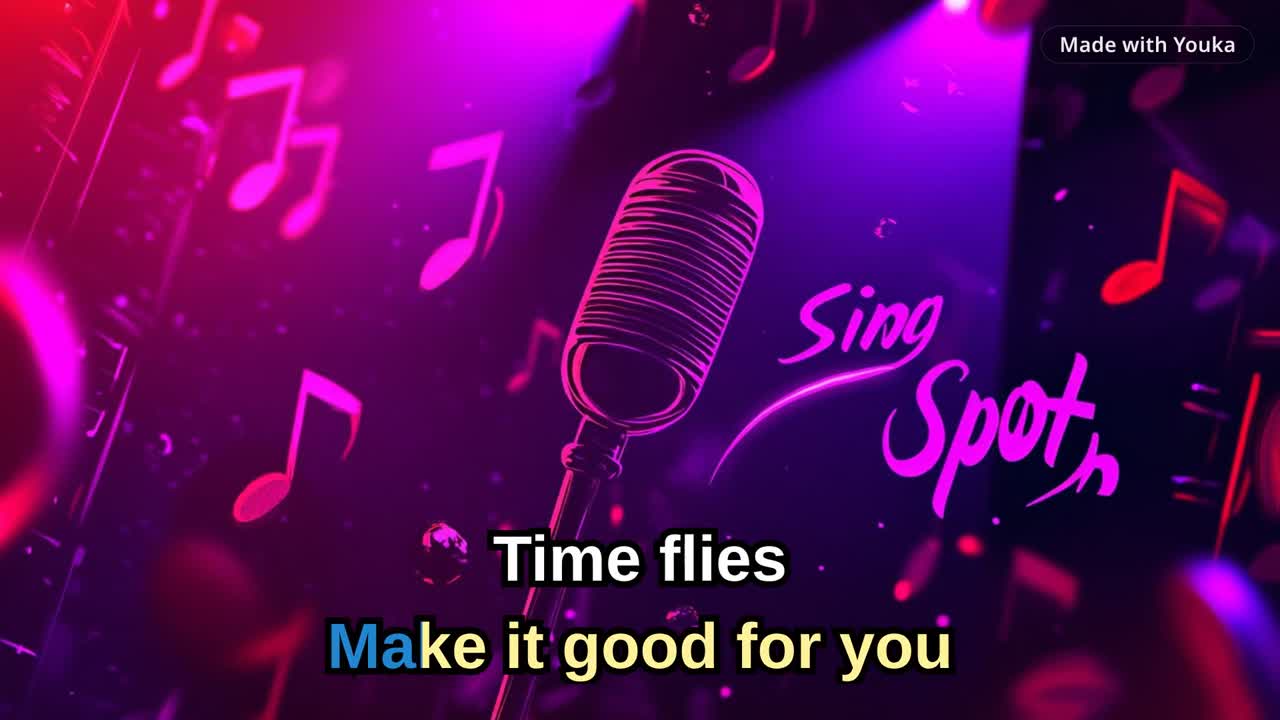
A lyric video is a song plus its words on screen, each line appearing as it is sung. You do not need footage, animation skills, or a video editor to make one. You need the audio file, the correct lyrics, and a tool that times the words to the vocal for you.
This guide starts from a song file with no video, such as a release you are promoting, a cover you recorded, or a track for a class or choir. If you already have a video and want words on top of it, read How to Add Lyrics to a Video instead.
Quick Answer
To make a lyric video, upload the song to the Lyric Video Maker in Youka Online, paste lyrics that match the recording, and let Youka sync each word to the vocal. Choose an aspect ratio for where the video will play, pick a background and a readable text style, fix any line that lands early or late, and export the finished MP4 in up to 4K.
Decide What Kind of Lyric Video You Want
Three choices shape the whole project. Make them before you upload.
| Choice | Options | Pick by |
|---|---|---|
| Vocals | Keep the singer, or remove the lead vocal | Keep for a lyric video, remove for karaoke |
| Shape | 16:9, 9:16, 1:1, or 4:3 | YouTube and TV, Shorts and Reels, feed posts, older screens |
| Background | Solid color, image, or video | Cover art for releases, simple color for lessons |
Most lyric videos keep the original vocal. If you want people to sing the lead part over an instrumental, that is a karaoke video, and How to Make a Karaoke Video covers it.
Step 1: Prepare the Song and Lyrics
Use the cleanest file you have. A studio master or high-quality MP3, WAV, FLAC, or M4A gives the most reliable timing. Live recordings, heavy reverb, and noisy demos still work but leave more lines to fix.
Then clean the lyrics so they match that exact recording:
- remove the title, credits, and any timestamps or annotations
- write every chorus out in full each time it is sung
- include the intro, bridge, and outro lines if they are sung
- break long lines where the singer breathes, so each line fits on screen
Lyrics that do not match the recording are the biggest cause of timing drift. Fixing the text first is much faster than repairing timing line by line afterwards.
Step 2: Upload the Song
Open Youka Online, start a lyric video project, and drop in your audio file.
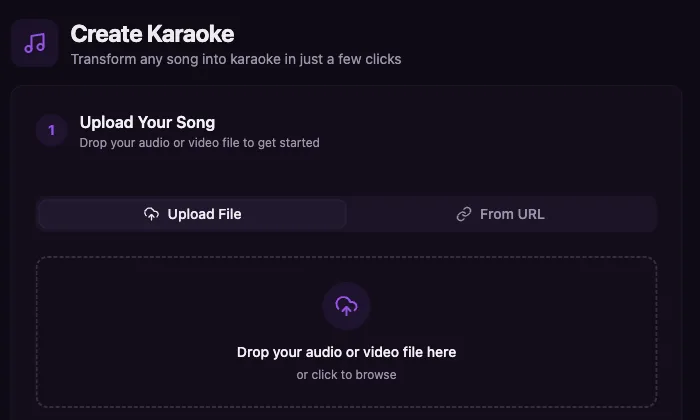
Paste your cleaned lyrics when Youka asks for them. You can let Youka look the lyrics up instead, but pasting is safer for covers, remixes, unreleased songs, and your own music.
Step 3: Let Youka Sync the Words
Start processing. Youka aligns every word to the vocal and opens a playable draft in the studio, usually within a few minutes. The draft is a starting point. Most lines will already be in place, and the next steps are about style and the few lines that need a nudge.
Step 4: Style the Video
The studio settings sit next to a live preview, so every change shows immediately.
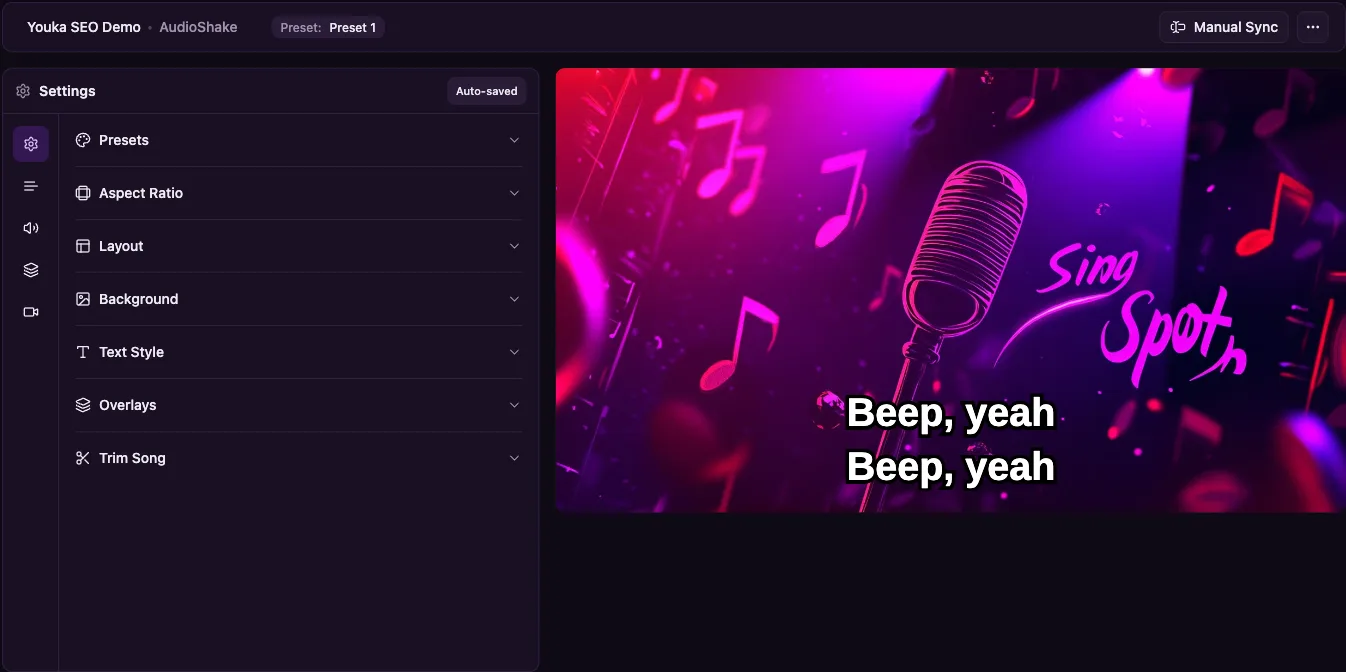
Work through the panels in this order:
- Aspect Ratio. Set this first, because it changes how text fits. 16:9 for YouTube, 9:16 for TikTok, Reels, and Shorts.
- Background. Upload cover art or a photo for a release, a short looping video for movement, or a solid color for lessons and practice tracks.
- Text Style. Choose the font, size, and colors for sung and upcoming words. Add an outline or shadow if the background is bright or detailed.
- Layout. Set where lyrics sit on screen and whether one or two lines show at a time.
- Overlays. Add your logo if the video represents a release or a channel.
- Presets. Save the style once you like it, so the next song on your channel looks the same with one click.
Readability matters more than decoration. Viewers watch lyric videos to follow the words, often on a phone. Large, high-contrast text over a calm background beats small text over a busy image every time.
Step 5: Fix the Timing Misses
Play the draft from the beginning and sing or read along. When a line appears late, early, or flashes by too fast, open Manual Sync.
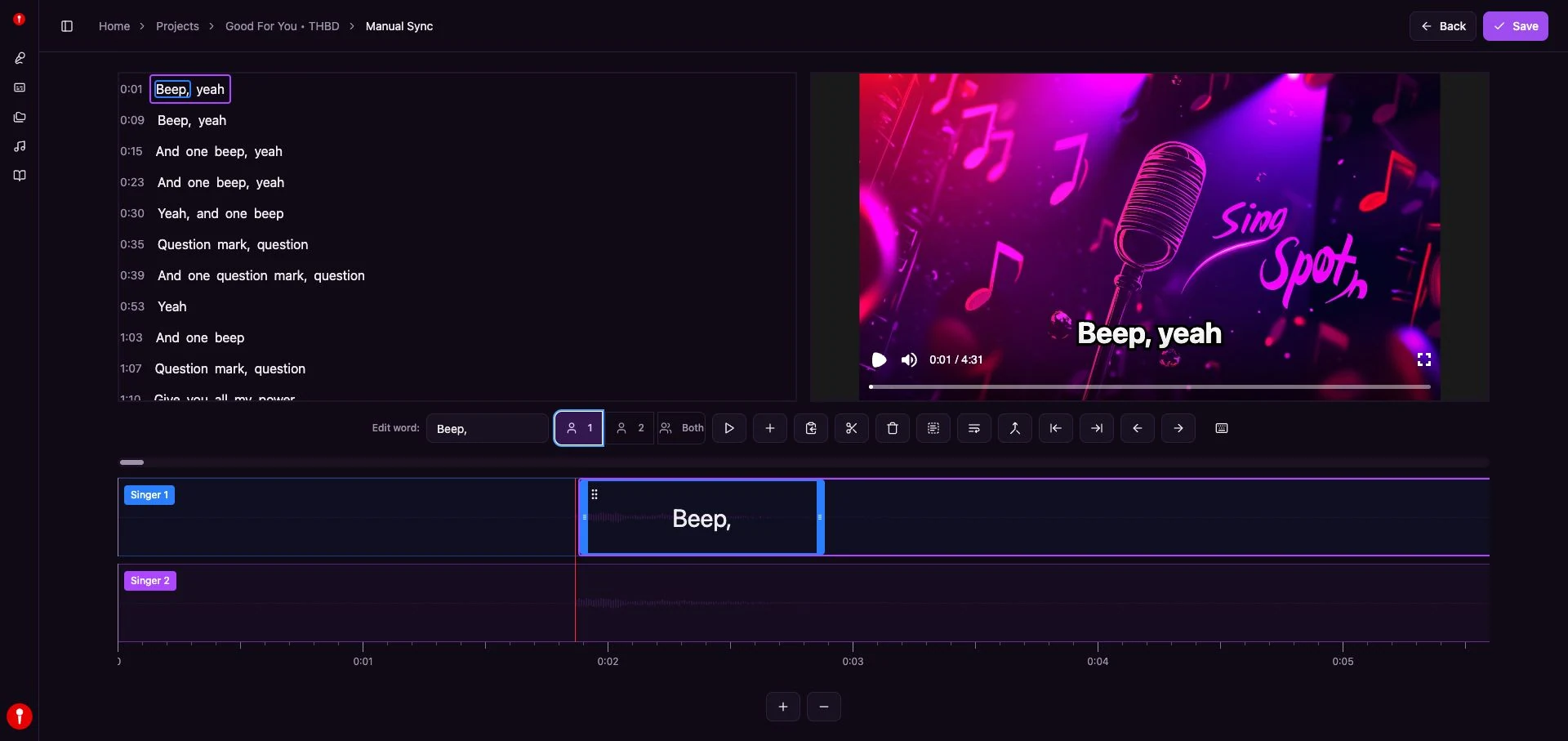
Select the word or line, move it on the timeline, and replay from just before the edit. A good rule for lyric videos: words can appear a fraction of a second before they are sung, so the viewer reads ahead, but never after.
If everything after a certain point is off, the cause is almost always the text, such as a missing chorus or an extra verse. Fix the lyrics before touching individual timings. The lyric synchronization guide has a full checklist for difficult songs.
Step 6: Export and Check
Export the finished video as an MP4 in up to 4K. Watch the exported file once from start to finish on the kind of screen your audience will use, and check that the ending is complete and no line is cut off.
For YouTube uploads, add the song title and artist to the video title and the lyrics to the description so viewers searching for the words can find it. For platform-specific export settings, use the export settings checklist.
Here Is What a Finished Lyric Video Looks Like
Demo music: Good For You by THBD, from Audio Library. Source: YouTube.
Common Mistakes
| Mistake | What happens | Do this instead |
|---|---|---|
| Lyrics from a different version | Timing drifts from a certain point on | Match the text to the exact recording |
| "Repeat chorus" written once | Later choruses have no words on screen | Write every repeat in full |
| Long lines | Text wraps or flashes by unread | Split at natural breaths |
| Thin white text on a bright photo | Words disappear on light parts | Add an outline or shadow, or use a calmer image |
| Choosing 16:9 for a TikTok clip | Small text with black bars on phones | Set 9:16 before styling |
FAQ
Can I make a lyric video for free?
New Youka accounts get 15 free credits, enough to make and export a lyric video from a real song and judge the quality. More videos need paid credits. See pricing.
How long does it take to make a lyric video?
Youka's sync usually takes a few minutes per song. Styling and fixing the remaining lines is the part that takes your time, and it gets faster once you save a preset.
Can I make a lyric video from a YouTube link?
Yes, for supported public videos. Use the From URL tab in Youka Online with the Youka Extension. Only use songs you have the rights to publish.
Can I make a vertical lyric video for TikTok or Reels?
Yes. Set the aspect ratio to 9:16 in the studio before you style the text.
Can I upload my lyric video to YouTube?
Youka exports a standard MP4 that YouTube accepts. Whether you may publish it depends on your rights to the song, so use your own music, licensed tracks, or songs you have permission for.
What is the difference between a lyric video and a karaoke video?
A lyric video keeps the singer and shows the words. A karaoke video removes the lead vocal so the viewer sings, usually with a highlight that follows each word. Youka makes both from the same project.
Ready to make yours? Open the Lyric Video Maker and use the free credits on your first song.